
Powerful Docs Setup & Workflow Guide
This guide gives you the complete picture, how Powerful Docs is structured, how all the pieces fit together, and the recommended flow for getting from a new account to a well-tuned, production-ready bot.
How Powerful Docs Works
At its core, Powerful Docs Bot works in three phases:
Your Content → AI Indexing → Chat Widget
- You connect your content, such as Help docs, PDFs, FAQs, GitHub repos, and more, as “Sources.”
- Powerful Docs indexes that content, chunking it and making it semantically searchable by the AI.
- Users ask questions, via the chat widget on your site, and the bot retrieves the most relevant content to form an accurate answer with source citations.
Everything else in the platform, conversations, analytics, settings, is built around observing and improving that loop.
The Four Core Areas of the Dashboard
Once logged in at app.surereplies.com, every bot has four tabs:
| Tab | What It’s For |
|---|---|
| Sources | Connect and manage the content your bot learns from |
| Conversations | Review every chat your bot has had, correct answers, flag gaps, train it |
| Analytics | Track volume, satisfaction scores, top questions, and knowledge gaps |
| Settings | Configure name, persona, tone, branding, embed snippet, and custom instructions |
Recommended Setup Flow
Follow this sequence for the smoothest path from new account to production-ready bot.
Phase 1: Build (Day 1)
Goal: Get a working bot with solid initial coverage.
- Create your account: Can refer to the page – Signing Up & Creating Your Account
- Create your first bot: Name it clearly (e.g., Acme Help Bot)
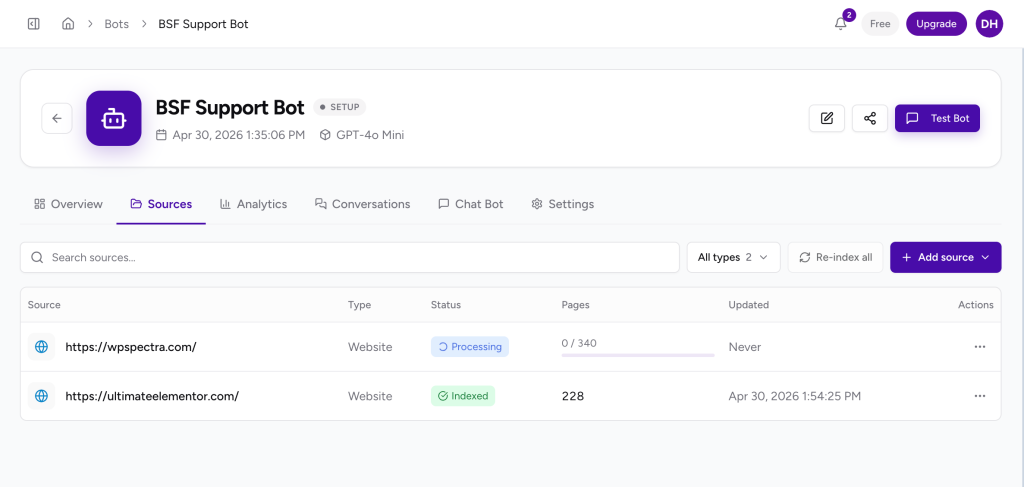
- Add your primary source: Your help center website or sitemap is usually the best starting point
- Add a secondary source: A PDF manual, Q&A pairs for your top 10 FAQs, or a changelog
- Wait for indexing: Sources move through different statuses such as Pending → Processing → Indexed (typically 1–5 minutes)
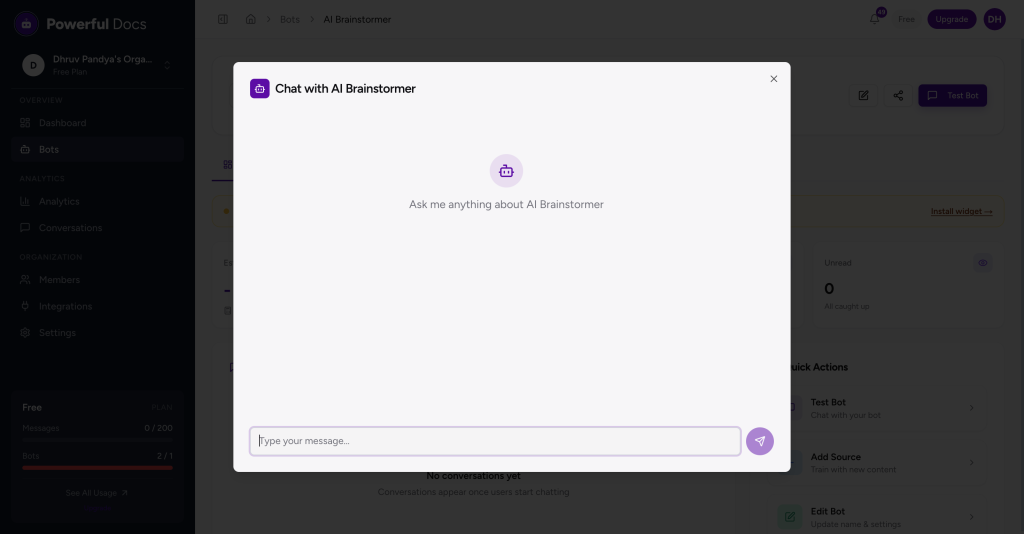
- Test it: Use the Test Chat (top-right of the bot page) and ask your 10 most common support questions
Phase 2: Configure (Day 1–2)
Goal: Make the bot feel like yours and behave reliably.
- Set the bot’s name and persona: Choose a tone (friendly, formal, technical, etc.) and write a welcome message
- Write custom instructions: Define what the bot should and shouldn’t do (scope, escalation rules, fallback behavior)
- Set brand colors: Match the widget to your site’s palette
- Add a fallback message: Tell the bot what to say when it can’t find an answer
Phase 3: Deploy (Day 2)
Goal: Go live on your website.
- Copy the embed snippet from Settings → Deploy:
<script src=”https://app.surereplies.com/embed.js” data-bot-id=”YOUR_BOT_ID” defer></script>
- Paste it before the </body> tag on your site (or use the platform-specific guides for WordPress, Shopify, Webflow, etc.)
- Verify the widget, ensure that it loads correctly on desktop and mobile
Phase 4: Review & Improve (Week 1 and ongoing)
Goal: Close knowledge gaps and improve accuracy continuously.
- Check Conversations daily: Mark correct answers as Read, investigate thumbs-down responses
- Fix knowledge gaps: When the bot can’t answer, add the missing content as a Q&A pair or new source
- Check Analytics weekly: Review Top Questions, Knowledge Gap trends, and Satisfaction Score
- Keep sources fresh: Enable auto-refresh on URL sources, re-upload new PDF versions when documents change
The Improvement Loop
The most important habit in Powerful Docs is the daily review loop:
User asks question
↓
Bot answers (or fails)
↓
You review in Conversations tab
↓
You fix the source / add Q&A pair
↓
Bot answers correctly next time
As Powerful Docs puts it: “The bot’s accuracy is not a property of the model. It is a property of your sources and your review habit.”
Key Terminology
| Term | Meaning |
|---|---|
| Source | Any content connected to your bot (URL, PDF, Q&A pairs, GitHub, etc.) |
| Indexed | Source has been processed and the bot can answer from it |
| Knowledge Gap | The bot couldn’t find a relevant answer, missing content in your sources |
| Conversations Tab | Record of every chat session, your main quality-control interface |
| Custom Instructions | Plain-language rules that shape the bot’s behavior and boundaries |
| Deflection Rate | The % of questions answered by the bot that would otherwise have been tickets |
| Re-sync | Manually triggering a source to re-index after content has changed |
| Citation | The source the bot references when giving an answer |
We don't respond to the article feedback, we use it to improve our support content.