
How to Set Up the Welcome Screen
The Welcome Screen is the branded first impression users see when they open your chat widget, before they type anything. It gives you space to introduce your bot, highlight key resources, and guide users toward the most relevant actions right from the start.
What Is the Welcome Screen?
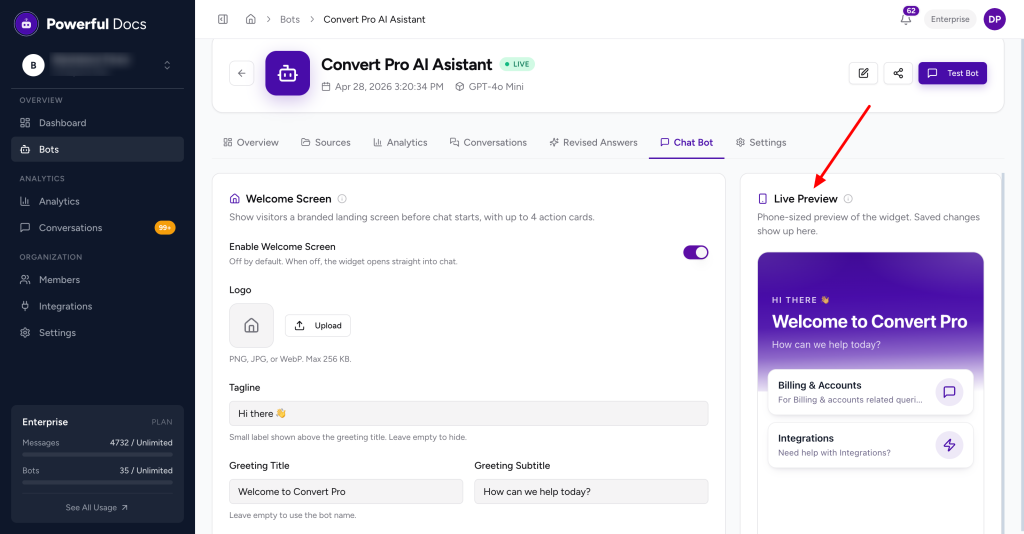
Instead of dropping users directly into a blank chat, the Welcome Screen acts as a lobby. It shows your branding, a short message, and up to four action cards that link users to the content or actions most likely to help them.
Users can start chatting from this screen at any time, or click an action card to jump directly to a relevant topic.
What You Can Customize
| Element | Description |
|---|---|
| Logo | Your brand logo or product icon displayed at the top of the welcome screen |
| Title | The main heading, usually your bot’s name or a short greeting |
| Tagline | A short line beneath the title setting context (e.g., “Powered by your docs”) |
| Subtitle | A longer line of supporting text, use this to tell users what the bot does |
| Action Cards | Up to 4 clickable cards that open the chat with a focused topic context |
Setting Up the Welcome Screen
- Open your bot from the dashboard.
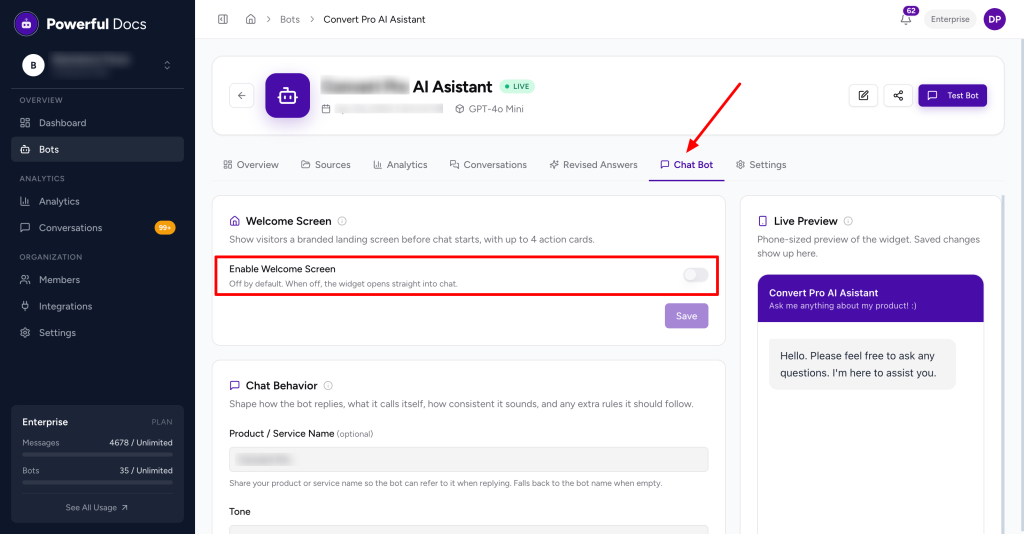
- Go to Chat Bot tab and simply enable the Welcome Screen.
- Fill in the fields:
Logo
- Click “Upload Logo” and select your image file.
- Recommended format: PNG with a transparent background.
- Recommended size: 120×40 px (landscape) or 64×64 px (square/icon).
Title
- Keep it to 3–5 words.
- Examples: “Hi, how can we help?”, “Acme Support”, “Ask us anything”
Tagline
- One short line. Optional but recommended.
- Examples: “Powered by your docs”, “AI-powered help, available 24/7”
Subtitle
- 1–2 sentences describing what the bot can help with.
- Example: “I can answer questions about Acme’s features, billing, and setup. For complex issues, I’ll connect you with a support agent.”
Action Cards
Add up to 4 action cards. Each card opens the chat with a focused context so the bot prioritizes answers relevant to that topic.
Each card has the following fields:
- Type: Currently supports “Chat with context” or “Link”. With Chat with context, the card opens the chat and injects your context snippet into the bot’s system prompt, steering it toward a specific topic for that session.
- Icon: Choose an icon displayed on the card to make it visually distinct at a glance.
- Label: (required) The heading text shown on the card. Keep it short and action-oriented. Examples: “Billing & Plans”, “Getting Started”, “Technical Help”
- Description: A short supporting line shown beneath the label to help users understand what the card covers. Example: “Chat with our AI assistant”
- Context Snippet: A short instruction injected into the bot’s system prompt when the user selects this card. This is not shown to the user, it privately tells the bot to prioritize a specific topic for that conversation. Example: “The visitor selected this card. Prefer answers about pricing and billing.” Keep it short and topical.
- Suggested Questions: (up to 6) Add up to 6 suggested questions that appear inside the chat when this card is selected. These override the bot’s global suggested questions for that session, giving users relevant prompts specific to the card’s topic.
Click “Save” changes go live immediately.
Action Card Ideas
| Card Label | Context Snippet | Suggested Questions (examples) |
|---|---|---|
| Getting Started | Prefer answers about onboarding and initial setup. | “How do I create my first bot?”, “What sources can I add?” |
| Pricing & Plans | Prefer answers about pricing, plans, and billing. | “What’s included in the Pro plan?”, “How do I upgrade?” |
| Technical Help | Prefer answers about integrations, embed code, and troubleshooting. | “Why isn’t my widget loading?”, “How do I add the script?” |
| Contact Support | The visitor wants to reach the support team. | “How do I submit a ticket?”, “What’s your response time?” |
Enabling and Disabling the Welcome Screen
The Welcome Screen can be simply enabled or disabled by a quick toggle. To toggle it:
- Go to Settings → Widget → Welcome Screen.
- Use the “Enable Welcome Screen” toggle at the top of the section.
- Save.
When disabled, the widget opens directly into the chat interface.
Preview
Use the live preview panel on the right side of the Widget settings to see exactly how your Welcome Screen will look before saving. The preview updates in real time as you edit each field.
Tips
- Don’t overload action cards. Pick 2–4 of your most common questions, not everything. Action cards work because they reduce friction; too many choices defeats the purpose.
- Match your brand voice. The title and subtitle are often the first words users read. Make sure they feel consistent with the rest of your product.
- Use pre-filled messages for FAQ shortcuts. If 30% of your users ask the same question, make it a one-click action card.
We don't respond to the article feedback, we use it to improve our support content.