
Getting Started with Powerful Docs Bot
Welcome to Powerful Docs Bot, the AI-powered documentation chatbot and customer support assistant that converts your existing help center, knowledge base, websites, PDFs, and FAQs into a fully trained AI chatbot. In this getting-started guide, you will create your account, build your first AI chatbot, train it on your knowledge sources, customize its branding and tone, test it, and embed the chat widget on your website, WordPress site, Shopify store, Webflow page, or any other CMS.
Whether you are a customer success manager looking to deflect repetitive support tickets, a documentation team automating answers to product questions, or a SaaS founder launching an AI help bot for the first time, this tutorial walks you through every step of the Powerful Docs onboarding flow.
Create your Powerful Docs account
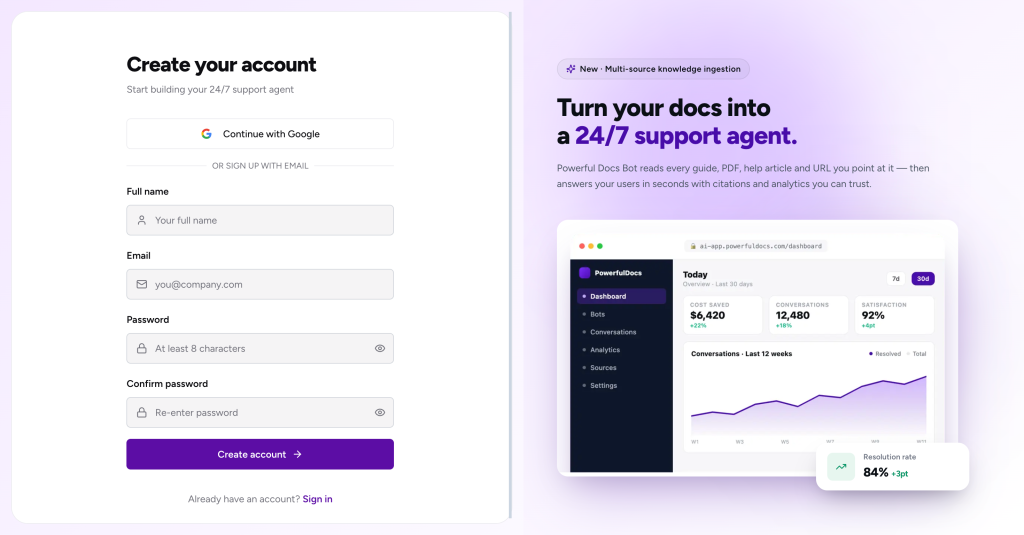
Creating a Powerful Docs account takes less than a minute. Open your browser and visit https://app.surereplies.com/ to begin.
What you’ll need to register
You can directly login using the Google Account login if you wish or you can enter the following details:
- Full name: used inside the dashboard and on team invitations.
- Work email address: recommended for team accounts; doubles as your login.
- Password: minimum 8 characters; use a unique passphrase or password manager.
Click Create account. A verification email is sent immediately. Click the activation link to verify your email address and unlock your AI chatbot dashboard.
Tip: If the verification email doesn’t arrive within 60 seconds, check your spam or promotions folder. Whitelist the domain surereplies.com to ensure future product and billing emails reach your inbox.
Log in to the Powerful Docs dashboard
Once your email is verified, log in at https://app.surereplies.com/login using the email and password you just created or directly via Google Login. You will land on the AI chatbot dashboard, where you can manage every bot, source, conversation, and team member from one place.
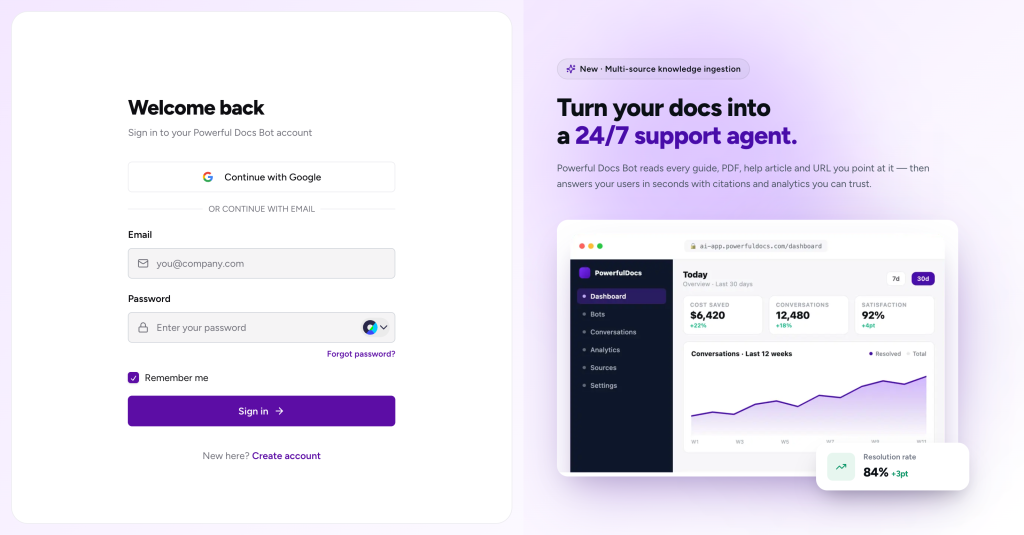
Forgot your password?
Click Forgot password? on the sign-in screen, enter the email associated with your Powerful Docs account, and follow the reset link sent to your inbox. Reset links expire after 60 minutes for security.
Onboarding wizard: set up your first AI chatbot
The first time you log in, Powerful Docs launches a three-step onboarding wizard that takes you from zero to a fully indexed AI chatbot in minutes. The wizard is the fastest path to a working AI documentation bot, you can refine everything later.
| Step | What you do | Outcome |
|---|---|---|
| 1. Your bot | Give your AI chatbot an internal name (e.g. “Acme Support Bot”). | A new bot is created in your dashboard. |
| 2. Content | Add at least one knowledge source – a URL, sitemap, file, or Q&A pair. | The AI chatbot begins indexing your documentation. |
| 3. Go live | Copy the embed snippet, or skip and grab it later from Settings → Deploy. | Your AI chatbot is ready to embed on any website. |
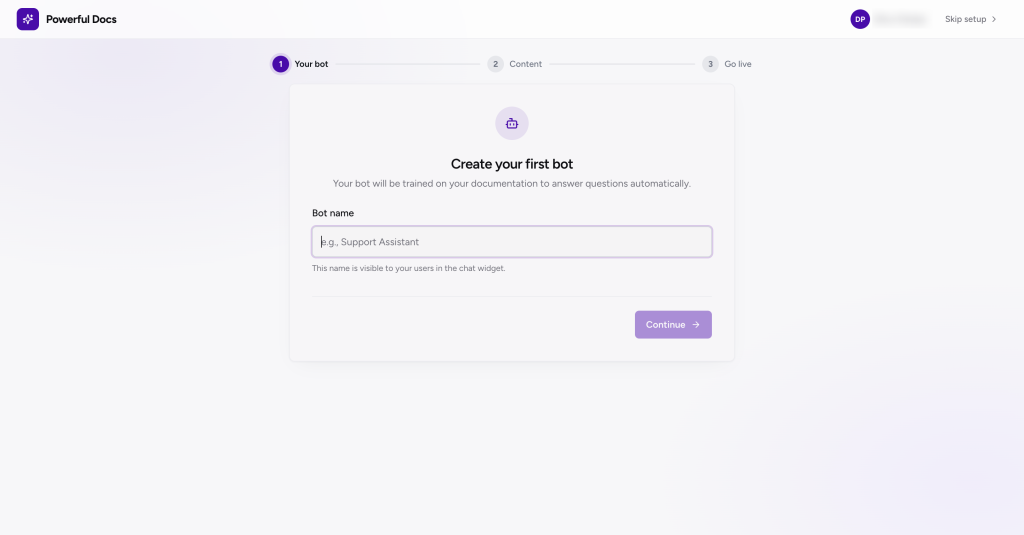
Step 1: Name your AI chatbot
Choose a recognizable internal name such as “BSF Support Bot,” “Docs Helper,” or “Help Center AI.” This name is shown to your team in the dashboard but not to end users. You can configure a separate public display name for the chat widget under Bot Settings → Branding. Click Continue to move forward.
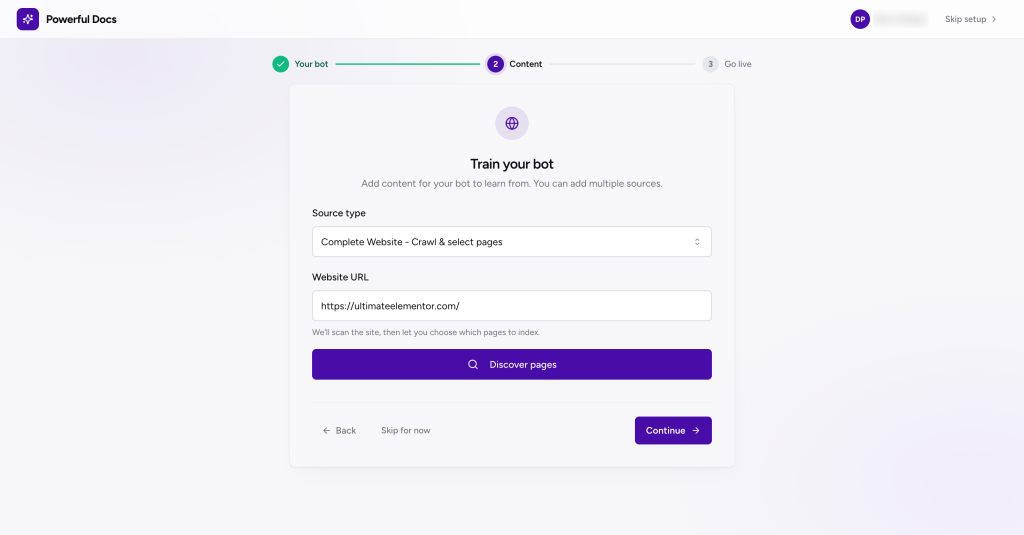
Step 2: Add your first knowledge source
This is where the AI training begins. Pick the source type that matches where your content already lives such as your help center, public docs, GitHub repo, sitemap, PDFs, or a curated FAQ list. See section Add knowledge sources for the full list of supported source types and when to use each one.
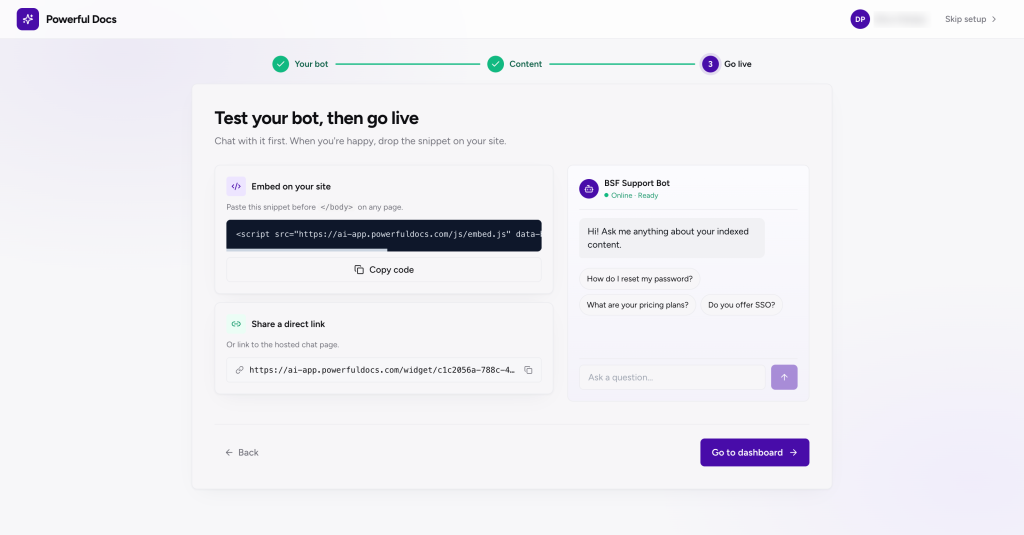
Step 3: Go live and embed your AI chatbot
After your first source finishes indexing, the wizard displays a one-line embed snippet. Copy it into your website now to launch instantly, or skip this step and retrieve the snippet later from Bot Settings → Widget Embed. The chatbot widget appears as a floating chat bubble in the bottom-right corner of your site.
Add knowledge sources to train your AI chatbot
A source is any document, URL, repository, or piece of text the AI chatbot learns from. Powerful Docs supports nine source types so you can train one bot on a mix of websites, sitemaps, PDFs, WordPress docs, GitHub repos, FAQs, changelogs, and free-form text, all answering customers from the same knowledge base.
How to add a new source after onboarding
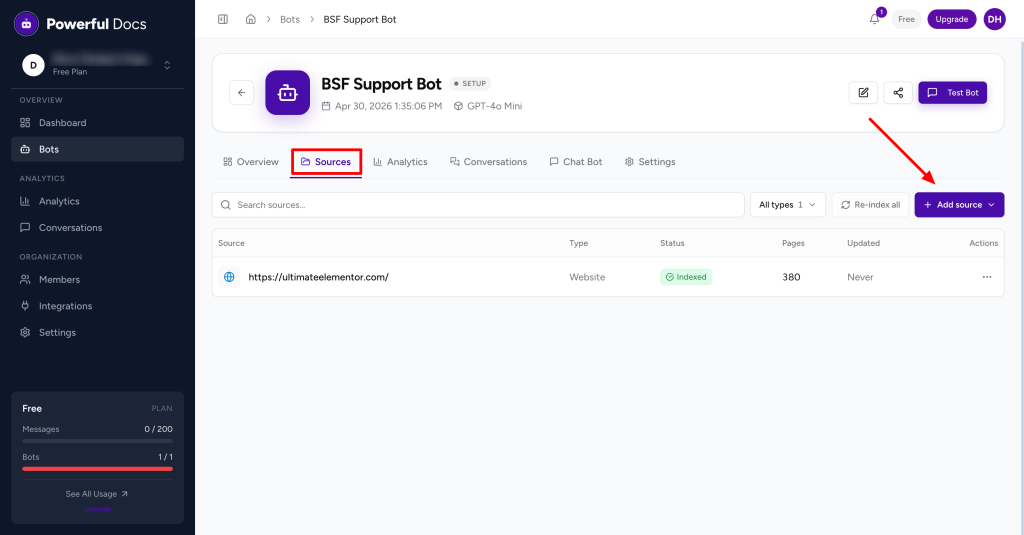
- Open the bot from the Bots page in the left sidebar.
- Switch to the Sources tab.
- Click Add Source in the top right.
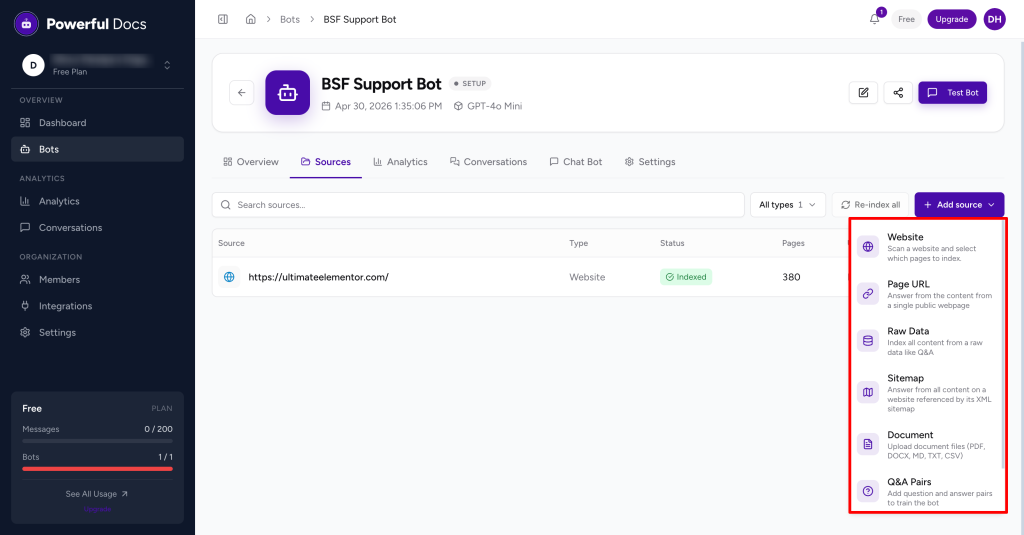
- Choose a source type and provide the required input.
Supported source types for AI chatbot training
| Source type | Best used for | What you provide |
|---|---|---|
| Page URL | A single article, help-center page, or product spec. | One public URL. |
| Website | An entire site, public documentation portal, or marketing site. | A starting URL, Powerful Docs crawls and discovers the rest. |
| Sitemap | Sites with a sitemap.xml- fastest, most reliable crawl. | The sitemap URL. |
| Document | PDFs, Microsoft Word documents, Markdown files, plain text. | Direct file upload (drag and drop). |
| WordPress Docs | Sites running our official Powerful Docs WordPress plugin. | One-click connection from the WP plugin. |
| GitHub | Open-source projects or repos with Markdown documentation. | Repository URL, branch, optional path filter. |
| Q&A pairs | Curated FAQ-style answers for high-priority customer questions. | Up to 50 question + answer pairs per source. |
| Raw data | Release notes, internal notes, anything that isn’t a URL. | Pasted text up to 16,000 characters. |
| Changelogs | Versioned product release history. | Public changelog URL or pasted content. |
What happens after you add a source
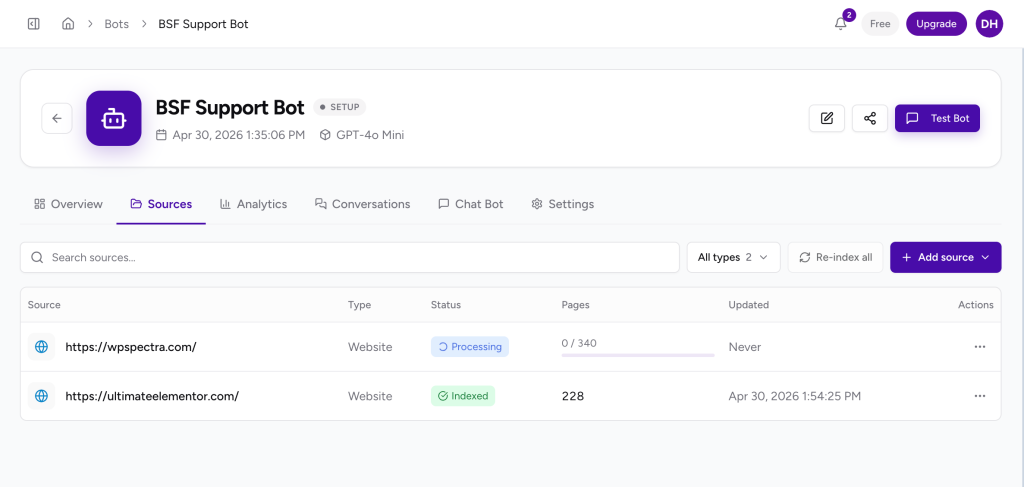
Each source moves through three states as Powerful Docs fetches and indexes its content:
- Pending – queued for processing.
- Processing – content is being fetched, parsed, and indexed.
- Indexed – ready to answer customer questions.
Most sources are indexed within 1–5 minutes. Large websites, documentation portals, or GitHub repos can take longer. Failed sources show a red status with a one-click retry.
Auto-refresh: keep your AI chatbot in sync
URL, Website, Sitemap, and GitHub sources support an auto-refresh schedule, which can be set to Daily, Weekly, or Monthly. Powerful Docs automatically re-crawls and re-indexes the source so your AI chatbot always reflects the latest version of your documentation. Open any source and pick a frequency from the refresh dropdown.
Customize your AI chatbot (branding, tone & behavior)
A great AI customer support bot looks and sounds like your brand. Open your bot and visit the Settings tab to customize the experience your end users will see in the chat widget.
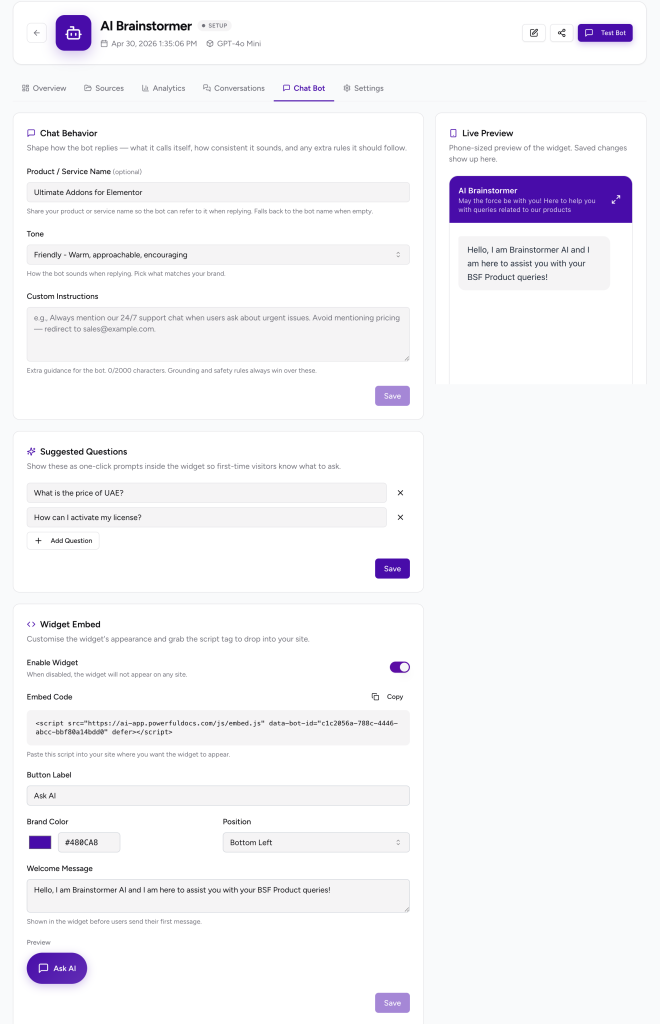
Settings you can configure
- Bot name: The public-facing identity in your chat widget.
- Welcome message: The first message a visitor sees when they open the chat.
- Theme color: Match the chat widget to your brand palette in one click.
- Tone & personality: Friendly, formal, concise, technical, or playful.
- Custom instructions: Guardrails like “Always end with a CTA to contact support.”
- Off-topic handling: What the AI chatbot says when asked unrelated questions.
Click Save at the bottom of any section to apply your changes immediately. Updates roll out to the live chat widget in real time without re-deploying any code.
Test your AI chatbot before going live
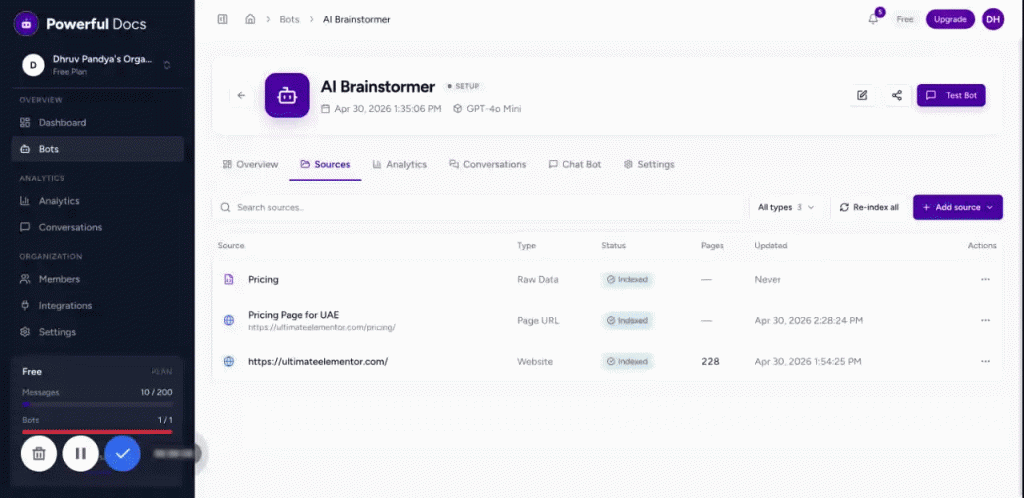
Before you embed the AI chatbot widget on your live website, validate answer quality from inside the dashboard. Testing prevents customer-facing surprises and surfaces gaps in your knowledge base before they impact support tickets.
- Open your bot from the Bots page.
- Click the Test Chat button in the top right of the bot detail page.
- Ask a handful of real questions your customers actually send: pricing, refunds, integrations, troubleshooting, edge cases.
If an answer looks wrong
- Confirm the relevant source status is Indexed, not Pending or Failed.
- Add or refine your Custom Instructions in Settings to enforce the desired tone or scope.
- Add a Q&A Pair source for high-priority questions you want answered exactly the same way every time.
- Re-index the source if its underlying content has changed since the last sync.
Deploy: embed the AI chatbot widget on your website
Once you are happy with answer quality, embed the Powerful Docs chat widget anywhere – WordPress, Shopify, Webflow, Wix, Squarespace, a custom React/Next.js application, or a plain HTML site. The widget is a single asynchronous script tag that loads only when needed and adds zero render-blocking weight to your site.
Option A: Plain HTML or any website
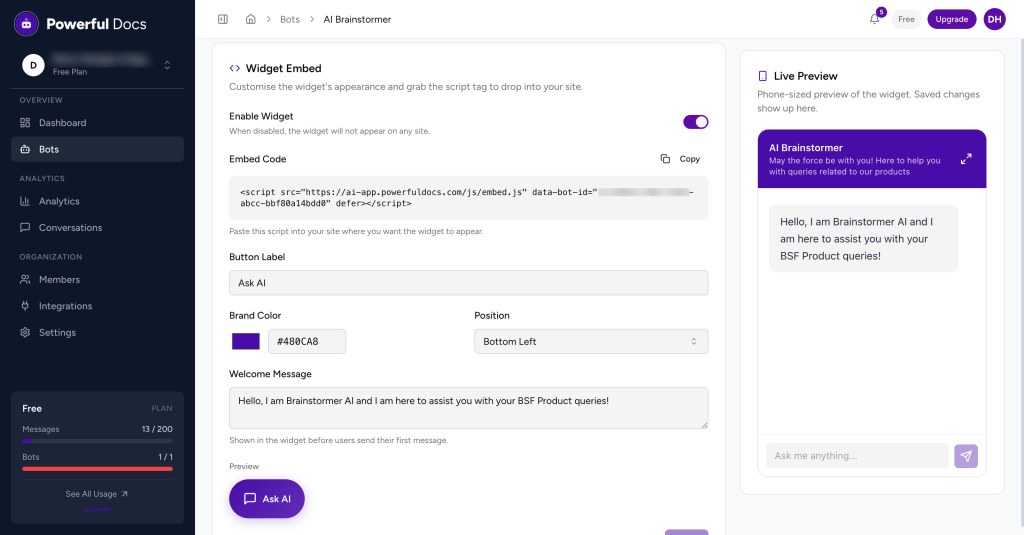
Open your bot → Chat bot → Widget Embed tab and copy the embed snippet:
<script src=”https://app.surereplies.com/embed.js” data-bot-id=”YOUR_BOT_ID” defer></script>
Paste the snippet just before the closing </body> tag of every page where you want the AI chatbot to appear. The widget renders as a chat bubble in the bottom-right corner of your site.
Option B: Shopify, Webflow, Wix, Squarespace, and other site builders
Use the Custom Code (or HTML embed) section of your site builder and paste the same snippet from Option A. In Shopify the snippet goes into theme.liquid; in Webflow use Project Settings → Custom Code → Footer Code; in Wix use the Custom Code panel under Settings; in Squarespace use Code Injection → Footer.
Manage your AI customer support bot day-to-day
Each bot in Powerful Docs has four management tabs designed to keep your AI chatbot accurate, on-brand, and aligned with what real customers ask.
| Tab | What it shows |
|---|---|
| Sources | Every knowledge source, status, last refresh time, edit and delete controls. |
| Conversations | Every chat transcript with thumbs-up / thumbs-down user feedback. |
| Analytics | Volume, top questions, knowledge gaps, satisfaction trend, deflection rate. |
| Settings | Branding, tone, custom instructions, deploy snippet, and the danger zone. |
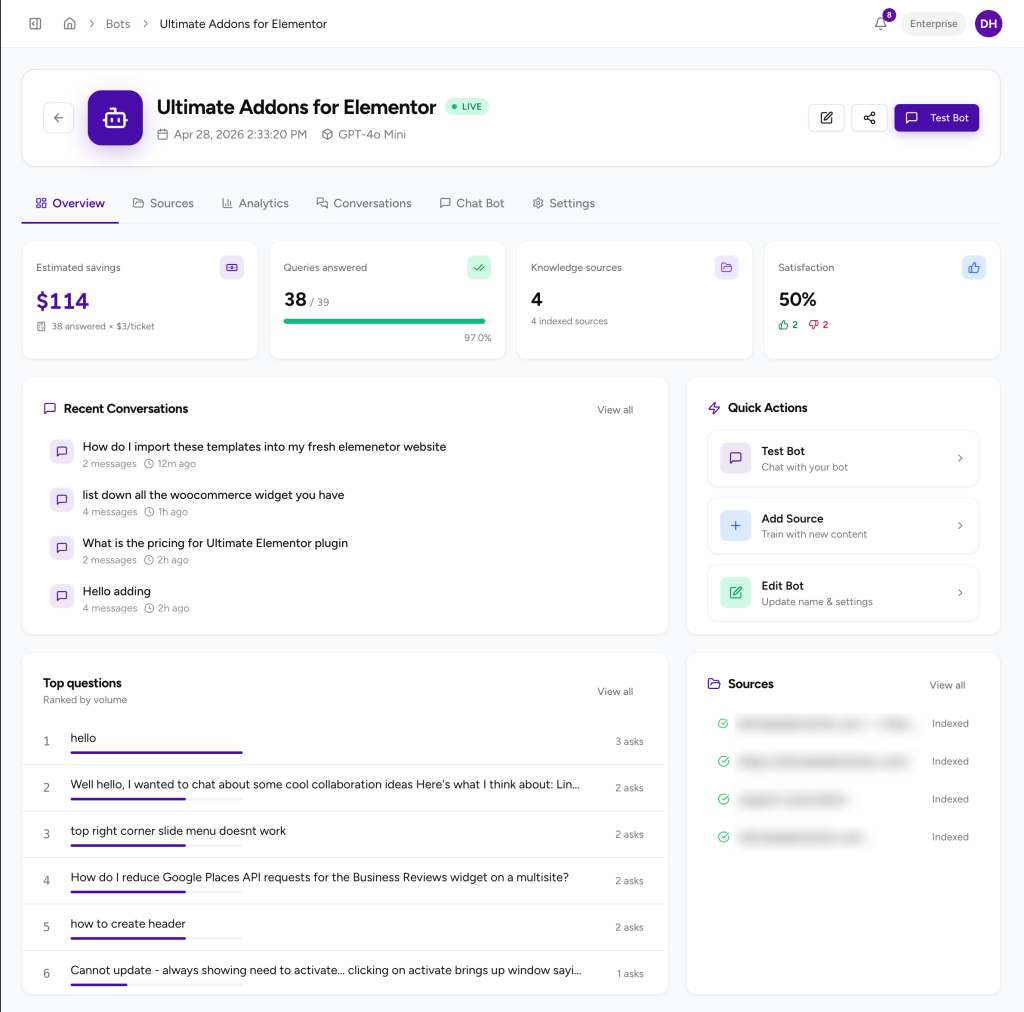
What to check every week
- Conversations – skim recent transcripts to spot weak or off-brand answers.
- Analytics → Knowledge gaps – questions your AI chatbot couldn’t answer well; close them by adding a source or Q&A pair.
- Sources – verify nothing is stuck in Failed state and that auto-refresh ran on schedule.
Inviting your team
Open Members from the left sidebar to invite teammates. Each member receives a unique login. Role-based permissions let you decide who can edit bots, who can only view conversations, and who controls billing.
AI chatbot best practices for higher answer quality
Use these proven techniques to get the highest deflection rate, the best customer satisfaction score, and the most natural-sounding answers from your Powerful Docs AI chatbot.
Combine multiple knowledge sources
The strongest AI customer support bots are trained on a mix of sources. A typical high-performing setup combines a sitemap of your public docs, a handful of curated Q&A pairs for VIP questions (pricing, refunds, security), and one or two PDFs (terms of service, onboarding guide). Diverse sources give the AI more context to triangulate answers.
Write clear, descriptive section headings in your docs
Powerful Docs uses your headings to retrieve relevant chunks of content. Replace vague headings such as “Setup” with descriptive, search-friendly headings such as “How to set up the Powerful Docs WordPress plugin in 3 steps.” This boosts both AI retrieval accuracy and your own SEO rankings.
Add Q&A pairs for high-stakes questions
For pricing, refund, cancellation, security, and SLA questions, create Q&A pair sources so the AI chatbot answers exactly the words you want. This is the single highest-impact lever for support quality.
Tighten tone with custom instructions
In Settings → Custom Instructions, give the AI specific, actionable rules: “Always answer in 3 sentences or fewer,” “Never recommend a competitor,” “If a billing question comes up, end with a link to /contact-billing.” Custom instructions compound the more precise, the more on-brand the bot becomes.
Review knowledge gaps weekly
Analytics → Knowledge gaps surfaces real customer questions your AI chatbot could not answer confidently. Treat this list as your weekly content backlog: add a doc page, refresh a sitemap, or write a new Q&A pair for each one.
Frequently asked questions (FAQ)
Common questions about Powerful Docs Bot, our AI documentation chatbot, and AI customer support automation in general. These answers are formatted for both human readers and FAQ schema markup.
How many AI chatbots can I create with Powerful Docs?
The number of bots depends on your plan. Most plans allow multiple bots so you can run separate chatbots for separate products, brands, or languages. See the Pricing page or Settings → Billing for the limits on your current subscription.
Can a single AI chatbot use multiple knowledge sources?
Yes. You can mix-and-match as many knowledge sources as you like inside one bot – a sitemap, a few PDFs, and curated Q&A pairs together usually produce the best AI customer support results.
How do I update the content my AI chatbot knows about?
Sources with auto-refresh (URL, Website, Sitemap, GitHub) update automatically on a Daily, Weekly, or Monthly schedule. For all other sources, open the source and click Re-sync to refresh the AI chatbot’s training data.
Where is my chatbot data stored, and is it secure?
Powerful Docs stores your content on encrypted, access-controlled servers. The content you upload is used only to power your own AI chatbot, it is never used to train shared models or shown to other customers.
My AI chatbot says “I don’t know” too often. How do I fix it?
Three steps: (1) Confirm every important source is Indexed, not Failed or Pending. (2) Add a Q&A Pair source for the exact questions you want answered. (3) Tighten your Custom Instructions in Settings to broaden the bot’s allowed scope.
Can I export a transcript of an AI chatbot conversation?
Yes. Open the Conversations tab, click the chat you want, then click Export to download the full transcript. Useful for support audits, training, and quality reviews.
Can the AI chatbot answer in multiple languages?
Yes. Powerful Docs detects the visitor’s language and answers accordingly, as long as your knowledge sources contain content in that language. For best results, add separate sources for each language you support.
How is Powerful Docs different from a generic ChatGPT plugin?
Powerful Docs is purpose-built for documentation and customer support. It crawls your real content, cites sources, supports auto-refresh, exposes analytics on knowledge gaps, and is brand-customizable. Generic AI plugins typically don’t handle ingestion, citations, or support analytics out of the box.
How do I cancel my Powerful Docs subscription?
Go to Settings → Billing → Cancel subscription. Your bots remain in read-only mode for 30 days after cancellation, after which they are permanently deleted.
Get help & next steps
Need a hand setting up your AI chatbot for documentation or customer support? Pick the channel that suits you:
Email: [email protected]
Support Form: https://surereplies.com/contact/
We don't respond to the article feedback, we use it to improve our support content.