
How to Setup Support Automation
Support Automation lets visitors raise a support ticket directly from the chat widget when they need human help. Tickets are created in your chosen support platform with the full chat transcript attached automatically, so your support team has complete context from the moment the ticket arrives.
How It Works
When Support Automation is enabled:
- A visitor is chatting with the bot and needs human help.
- An “Open a support ticket” CTA appears in the widget.
- The visitor fills out the support form (tier selection and optional description).
- A ticket is created in your connected support platform with the chat transcript attached.
- Your support team receives the ticket, pre-tagged and ready to triage.
The entire flow happens within the chat widget, visitors never need to leave the page.
Setting Up Support Automation
- Open your bot from the dashboard.
- Go to Settings and scroll down to Support Automation.
- Toggle “Enable Support Automation” on.
- Configure the fields below.
- Click “Save”.
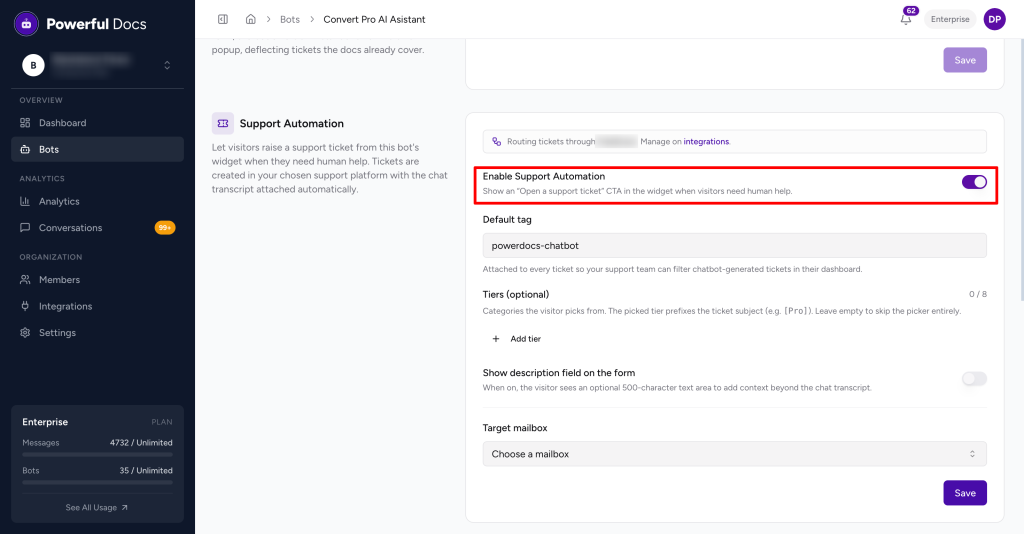
Before enabling, make sure your support platform integration is connected. The ticketing destination is managed separately under Settings → Integrations (e.g., connecting FreeScout). The Support Automation section will show which platform tickets are currently routed through.
Configuration Options
Default Tag
A tag automatically attached to every ticket created through the widget.
- Default value: powerdocs-chatbot
- Your support team can use this tag to filter and identify all chatbot-generated tickets in their dashboard.
- Change it to match your team’s existing tagging convention if needed.
Tiers (optional, up to 8)
Tiers are categories the visitor selects before submitting their ticket. The selected tier is automatically prefixed to the ticket subject line for easy triage.
Example: If the visitor selects “Pro”, the ticket subject becomes [Pro] User’s issue description.
- Add up to 8 tiers (e.g., plan types, product areas, issue categories).
- Leave empty to skip the tier picker entirely, the form will go straight to submission.
- Useful for teams that support multiple plans or product areas and need tickets pre-sorted on arrival.
Show Description Field
A toggle that adds an optional 500-character text area to the support form.
- When on: the visitor can add written context beyond what’s already in the chat transcript.
- When off: the ticket is created using the chat transcript alone, with no extra text field shown.
The description field is always optional for the visitor, it never blocks form submission.
Target Mailbox
The mailbox where submitted tickets are delivered. Select from the mailboxes connected to your support platform integration.
- Example: Brainstorm Force ([email protected])
- If no mailboxes appear, connect your support platform first via Settings → Integrations.
How it appears in the front-end:
There are multiple ways when the support form will appear:
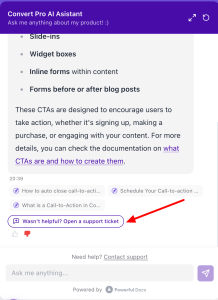
- When the user dislikes the answer given by the bot a small prompt will show up saying “Wasn’t helpful? Open a support ticket”.
- When you simply ask the bot to open a support ticket,
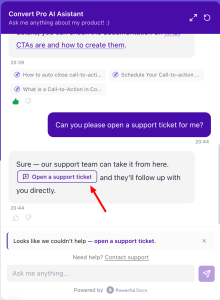
Once the user click on the same support automation will be triggered and based on your configuration the fields will show up.
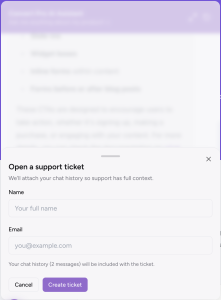
What the Ticket Looks Like
When a visitor submits a ticket, your support team receives:
- Tag: The default tag (e.g., powerdocs-chatbot) for easy filtering
- Subject: Prefixed with the selected tier if tiers are configured (e.g., [Pro] Can’t access my account)
- Chat transcript: The full conversation automatically attached, no need to ask the visitor to repeat themselves
- Description: The visitor’s additional context, if the description field is enabled and filled in
Disabling Support Automation
- Go to Settings and scroll down to Support Automation.
- Toggle “Enable Support Automation” off.
- Click “Save”.
Tips
- Connect your integration first. Support Automation won’t work without a connected support platform. Set that up under Settings → Integrations before enabling this feature.
- Use tiers if you support multiple plans or products. They arrive as a prefix on the subject line, making it easy to route or prioritize tickets without manual triage.
- The chat transcript does the heavy lifting. Because the full conversation is attached automatically, the description field is truly optional, enable it only if you need extra structured context from visitors.
- Combine with Support Form Deflection. Before the ticket form is submitted, Support Form Deflection surfaces relevant documentation answers, reducing tickets for questions already covered in your docs. Enable both for the best result.
We don't respond to the article feedback, we use it to improve our support content.