
Creating Your First Bot
This guide walks you through creating a fully functional Powerful Docs Bot from scratch, from naming your bot to having it ready for testing.
Before You Begin
Make sure you have:
- An active Powerful Docs Bot account
- At least one knowledge source ready (a website URL, PDF, or a few Q&A pairs)
If you haven’t signed up yet, refer to the Getting Started guide.
Step 1: Log In and Open the Dashboard
- Go to app.surereplies.com and log in.
- You will land on the main dashboard, which shows all your existing bots (or an empty state if this is your first).
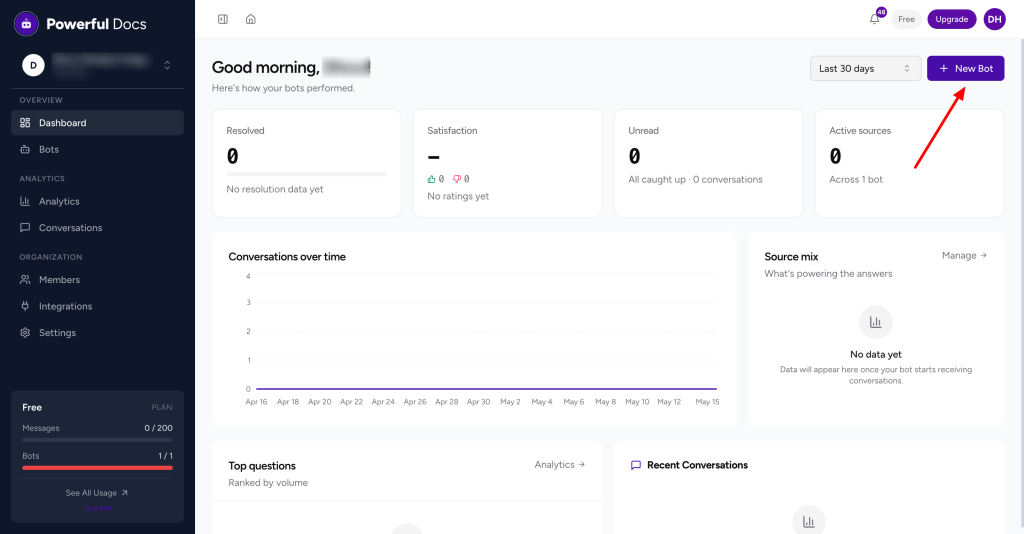
Step 2: Create a New Bot
- Click the “Create New Bot” button (top-right of the dashboard).
- A setup panel will appear asking for basic information.
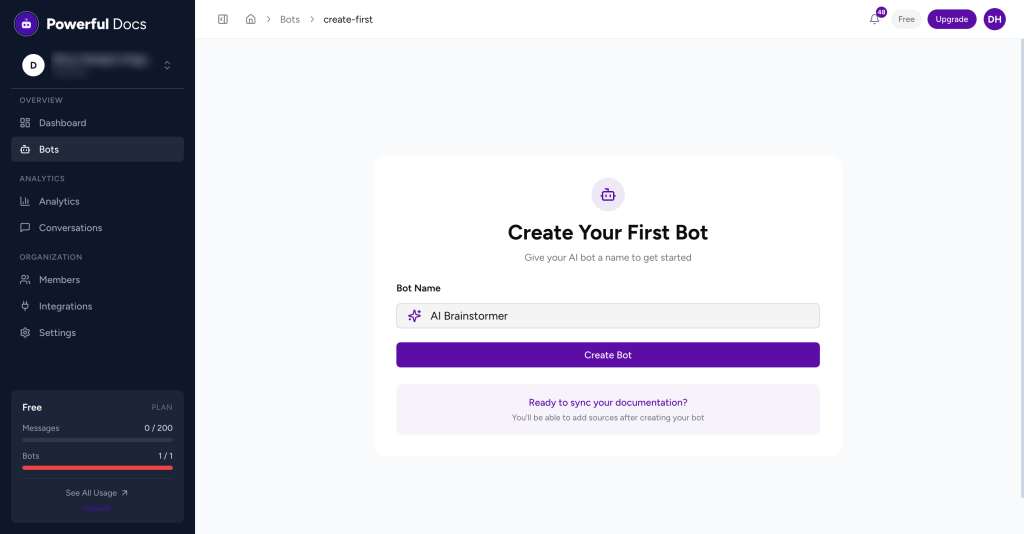
Step 3: Name Your Bot
Enter a clear, descriptive name for your bot. This name is only visible inside the dashboard, it is not shown to your end users.
Tips for naming:
- Use the product or team the bot serves (e.g.,
Acme Help Bot,Billing Support) - Avoid generic names like
Bot 1, you may create multiple bots later and will want to tell them apart quickly
Step 4: Add a Knowledge Source
Your bot needs at least one knowledge source to answer questions. You can add more later, but one is required to proceed.
Choose from the following source types:
| Source Type | Best For |
|---|---|
| Website / URL | Existing help centers, product pages |
| Sitemap | Large sites with structured XML sitemaps |
| Policy documents, manuals, guides | |
| Q&A Pairs | Precise, hand-crafted answers |
| GitHub Repo | Developer-facing technical documentation |
| WordPress Docs | Sites running WordPress with doc plugins |
| Raw Text | Custom content not hosted anywhere |
| Changelog | Release notes and version history |
Click “Add Source”, select the type, and follow the on-screen prompts. The system will begin indexing your content immediately.
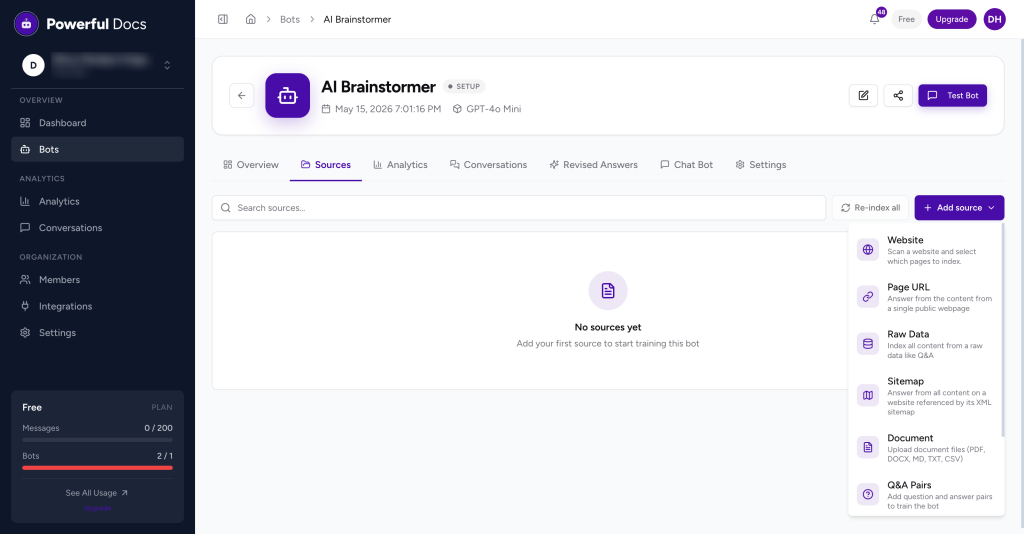
For a detailed walkthrough of each source type, see Adding Knowledge Sources: Overview.
Step 5: Configure Basic Bot Settings
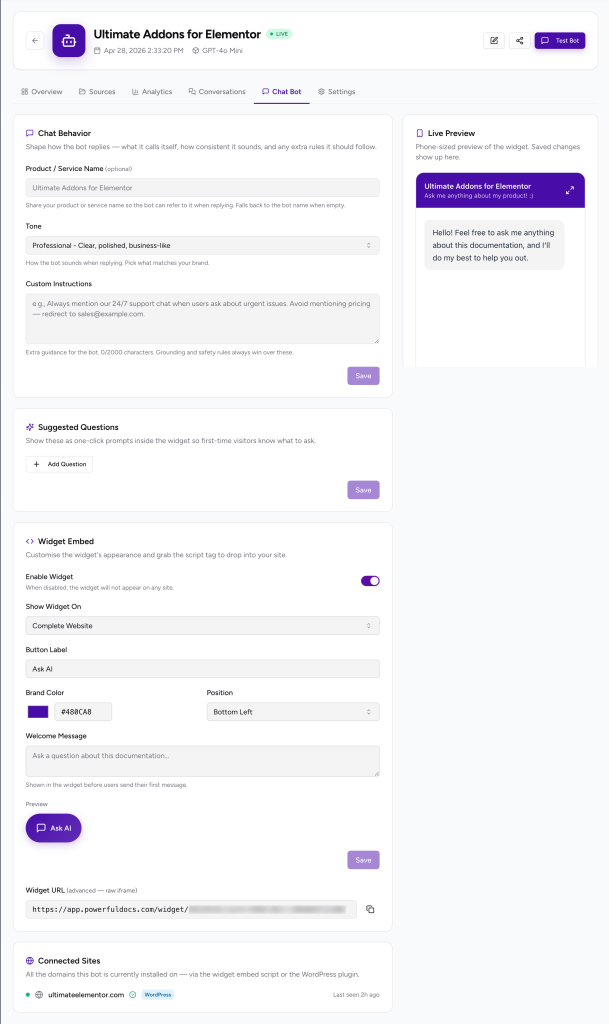
After adding your source, you can configure the bot by clicking on the Chat Bot label and can manage the following:
- Welcome Message: The first message your bot sends to a visitor (e.g., “Hi! Ask me anything about our product.”)
- Tone: Choose from Friendly, Formal, or Technical
- Bot Avatar / Name: The display name and icon your visitors will see in the chat widget
- Custom Instruction: Extra guidance that you want the bot to follow, such as redirecting the users to open a support ticket that needs urgent support, and so on.
- Widget position: Set the position where the bot should appear on your site.
You can change all of these settings at any time without re-deploying.
Step 6: Test Your Bot
Before going live, test the bot inside the dashboard:
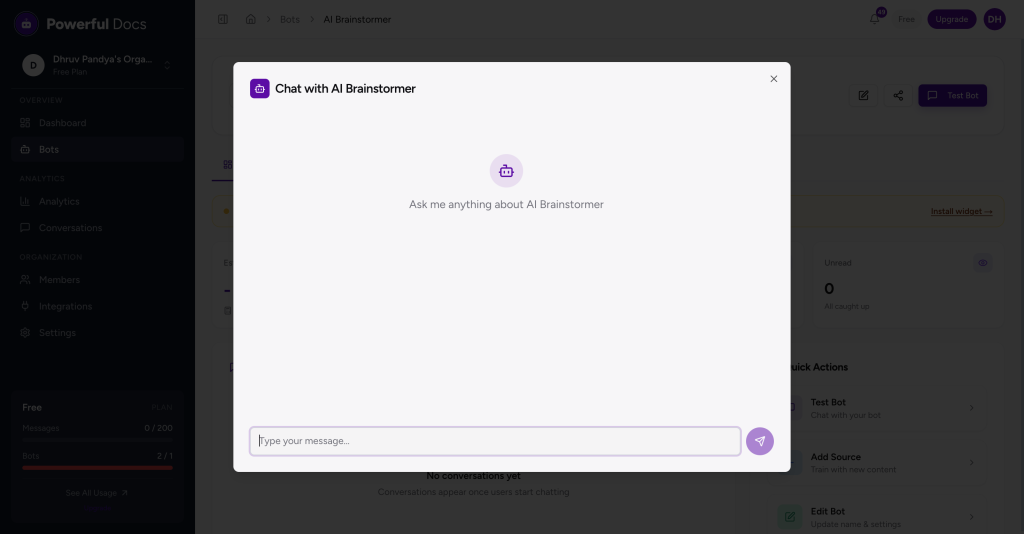
- Click “Test Bot” in the top bar.
- A chat panel opens. Ask it questions that your users would typically ask.
- Review the answers and the sources it cites.
- If answers are missing or incorrect, check that the source was indexed successfully and that the content covers the topic.
Step 7: Deploy the Widget
Once you are satisfied with the bot’s responses:
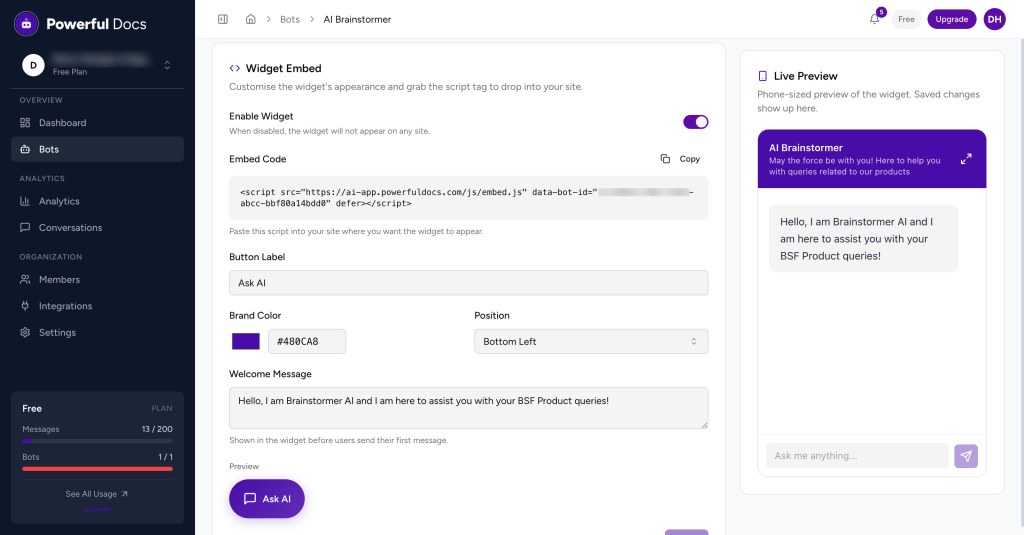
- Open your bot → Chat bot → Widget Embed tab
- Copy the snippet provided.
- Paste it before the closing
</body>tag of your website.
The widget goes live immediately after the snippet is added, no rebuild or redeploy of your site is needed.
We don't respond to the article feedback, we use it to improve our support content.